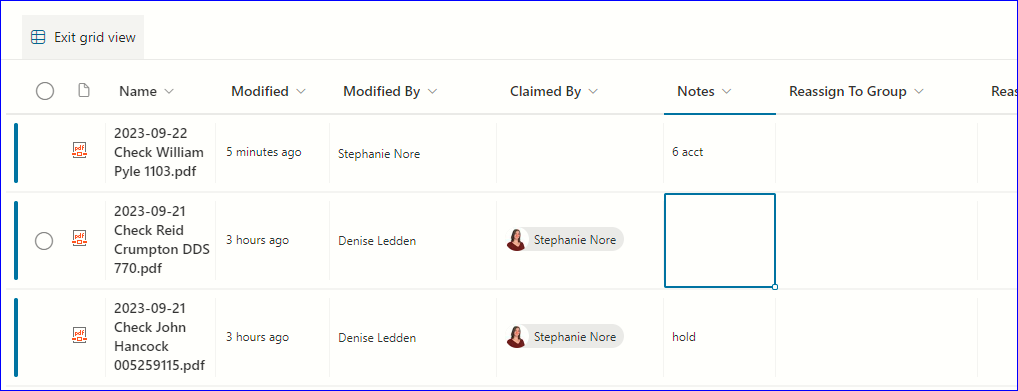
COAR - Workflows - All Documents (sharepoint.com)
Current responsibilities
RPS Owner: Transaction Specialist
Daily Ops owner: Rebecca (Jelitta for TTC)
IRA to QRP Review: Michael G.
Money Received Process
All checks received via the corporate mail procedure. The RPS Transaction Specialist (RPS TS) will retrieve checks from the Checks folder in Flo and get the checks to whom it belongs in Freshdesk. Checks received are generally from the mail or a walk-in.
General Checks Process
- RPS TS Download check from Flo Checks folder.
b. For RPS rollover checks, place a CLAIM and update update status to HOLD in notes in SharePoint.
d. For RPS loan payoff checks, place a CLAIM and update status to HOLD in notes in SharePoint.
Checks received after 2:30 will be processed the following business day. The RPS TS will continue to check the checks folder just in case a check comes that shouldn’t be deposited yet. For rollover checks, place HOLD in SharePoint but do not claim them until the next day.
- In Freshdesk, RPS TS search the company and select +New Ticket. a. Use Smart Desk to find the participant and plan.
- Use the Money coming in ticket template
- Select the correct subtype.
a. For rollovers & loan payments/payoffs, add the name of the participant to the description box replacing the highlighted text.
c. If HOLD was not added to the notes in SharePoint, remove this from the description box.
d. Attach the PDF of the check.
e. Create ticket.
- Daily Ops will log checks, close the Freshdesk ticket, and remove the HOLD in SharePoint for claimed checks.
- If the plan name cannot be found in Smart Desk, check InnoTrust for plans not in SmartDesk
Checks from the Chattanooga Office
When the Chattanooga office receives an RPS rollover check, they will email a copy of the check to Ryan (who will add it to the check folder: Scanned Mail (SharePoint.com)).
The RPS TS & Daily Ops will handle the check the same way all checks are handled.
The Chattanooga team will check the folder to see if the HOLD has been lifted. When it has, they can deposit the check in Chattanooga.
There should only be one deposit each day.
Checks We’re Unable to Deposit As Is – Incoming Rollover
When we receive a rollover or a loan payment/payoff check and need additional information from the participant, Daily Ops will use the Rollover Checks – Need More Info scenario automation. This automation will:
- Add a note saying: “CSR - please create a ticket under the ptp to retrieve the information requested using the Need more info - Money coming in ticket template.”
- Set the status to Waiting.
- Assign Internal Group to CSR.
- Assign Internal Agent to Justin.
- The ticket will also be viewable in the Waiting Requests from Ops ticket view on the CS Team Dashboard.
Process
- CSR tagged will take a snip of the ticket.
Search the participant in Freshdesk, open the contact, and select +New Ticket (create contact if needed).
Use the Need more info - Money coming in ticket template. The instructions in the template will determine if the More Info needed for rollover and IRA to QRP Rollover Certification canned response is needed.
The CSR will reach out to the participant
If contact information is not available for the plan participant, request it from the ER using the contacts notes in Freshdesk or check to see if the RM sent anything prior to receiving the check (an older FD ticket under the PTP name). We can also mail a letter.
Please make sure we are reaching out daily on these tickets.
- Documents received will be reviewed by Michael Garaza. If documentation is received via Plan Info, the individual will assign the ticket to the owner of this process using the IRA to QRP scenario automation.If it’s a statement:
- Download the document.
- In the tracking ticket, add a note, attach the statement, add a note and tag Daily Ops, and change the ticket status to Closed.
- In the ticket from Plan Info, use the Documents Received Note & Close Ticket scenario automation to close the ticket.
- Download the document and review it.
- If everything looks correct, in the tracking ticket:
- Add a note.
- Attach the completed form.
- Add a note stating “reviewed and accepted.”
- Wait for the statement.
If we don't have what we need, Daily Ops will add a note notifying the CSR.
- If we have what we need, Daily Ops will continue their normal process
Things We May Need
Any incoming rollover from an IRA (check/wire/transfer) will require the following:
- IRA to QRP Rollover Certification (reviewed by a CSR)
- Statement
Exception:
- Simple IRA to Simple IRA rollovers do not require an IRA to QRP form.
For QRP to QRP rollovers, we could need the most recent statement, or we could just need to know what type of funds are included in the rollover (Traditional vs. Roth).
For QRP to QRP Roth rollovers, we will need:
- The first year of contribution
- Basis
The explanation of each question on the IRA to QRP Rollover Certification form is on page 2 and is saved in Freshdesk in the Solutions tab under Rules and Conditions Applicable To Rollovers.
Checks we’re unable to deposit as is – Loan Payoff
Loan - End of Loan Overpayment Best Practices from Daily Ops.docx
Unable to Accept Funds
There are situations where funds cannot be rolled into a participant's account immediately, or cannot be accepted at all. Common reasons include:
- The participant is no longer active in the plan.
- The participant's name cannot be located in SmartDesk.
- The funds are not eligible for the plan.
If we are unable to accept the deposit as is:
- The Transaction Specialist will place a HOLD on the check in the scanned check folder as well as add a note as to why it is on hold
- If applicable, reach out using the Checks TEAMS chat to ask TrustOps if it is theirs or if they are expecting funds
- If it isn't trust ops or indicates the check maybe a fee instead of a contribution, reach out to fees to see if they are expecting any checks
- If it does not belong to either department and we are unable to accept, the TS will send the check back to the address on file or on the check
If we have already deposited the funds that shouldn't be in the plan, please let Justin and Jamari know.
FAQ
Fees@thetrust.com for any fee related questions/notifications
Current Responsibilities
Ryan: Pulls checks in office if we need more information before deposit
Daily Ops/Codi/Jamari: Funds deposited and shouldn't have been, issues with Flo requests, and issues with Freshdesk
IRA to QRP Rollover Certifications are reviewed by Michael Garaza. Please see guidance to review the form here: Rules And Conditions Applicable To Rollovers - IRA to QRP Form Review
Deposit Request tickets
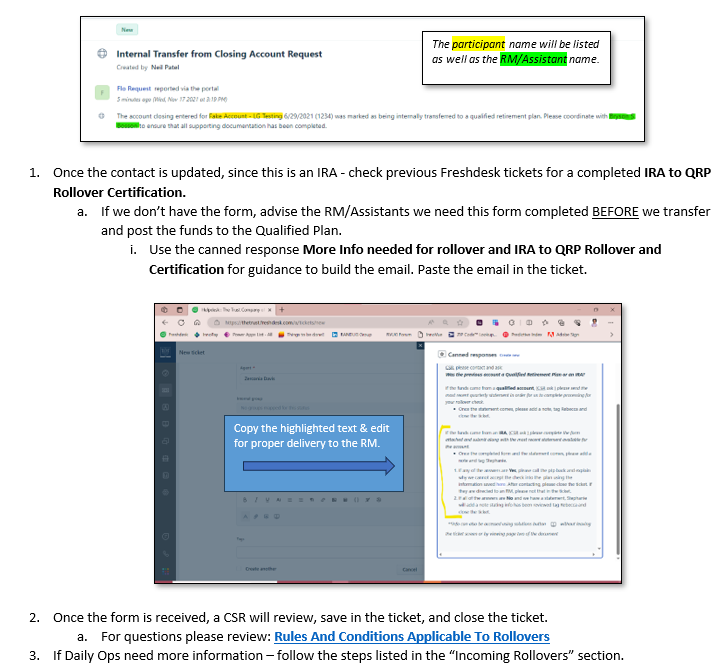
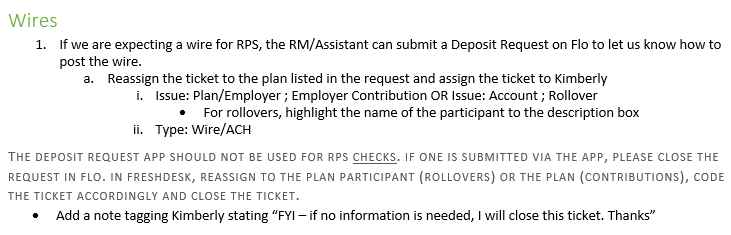
These tickets are generated because someone on the client service team is trying to notify us of incoming funds via wire or check. When received, first assign the ticket to the correct retirement plan. Then, check the tickets under the retirement plan. Look for a ticket with the subject $$ received. Match the $ with the $$ received ticket or use the copy saved in the SharePoint link.
If we haven't received the check yet, change the status to waiting.
Once received, add a note to the deposit request ticket, link the $$ received ticket (copy/paste the URL address bar), and write "funds received. closing ticket." Close the Freshdesk ticket.
Additional Information
When we receive a check for a plan participant that needs to be pulled because the participant is still active, please review the check. Often, the plan participant recently sent us a request to rollover to a new institution. If the new institution was unable to accept the funds, they will send the funds back with the reason why they can't accept.
From there, we need to call the plan participant, advise of the note on the check and mail the check back to the plan participant in order for them to handle the account. If the information needed is something we can provide, provide the participant with the information. We need to contact the participant and send a letter along with the check. The letter, the check copy, and each attempt to contact should be saved in the Freshdesk ticket.
After attempting to contact the participant for about 2 weeks, close the ticket.
We cannot reissue a check that is not ours.
We should not be holding onto rollover checks for extended periods.
If we receive a check and you're unsure how to act on the check, please contact Jamari.
Using notes for incoming check processing
As of Friday, September 22, 2023 12:52 PM
Starting today, you now have a way to hold incoming checks using the notes section. We are implementing this to prevent us from depositing checks that are not for us. This is definitely a work in progress, so let me know of any questions.
A few examples of checks we should not deposit:
- A rollover check from a Roth IRA made payable to a qualified plan,
- A rollover check for a client/participant that is not a TTC client or found in any of our retirement plans,
- A check representing the sale of an asset that we do not own.
What we’re asking you to do:
- By 3:30PM EST, have verified all checks you’ve claimed are ok for deposit.
- For those we cannot verify by 3:30PM – for any number of valid reasons – please update the notes to reflect hold.
- At 3:30PM EST, Trust Ops will pull all checks and review the scanned check folder for any holds.
- All checks without a hold will be deposited that day – which isn’t really any different than what we’ve been doing.
- Once you’re sure we can deposit the check, remove the note and Trust Ops will deposit on that day.
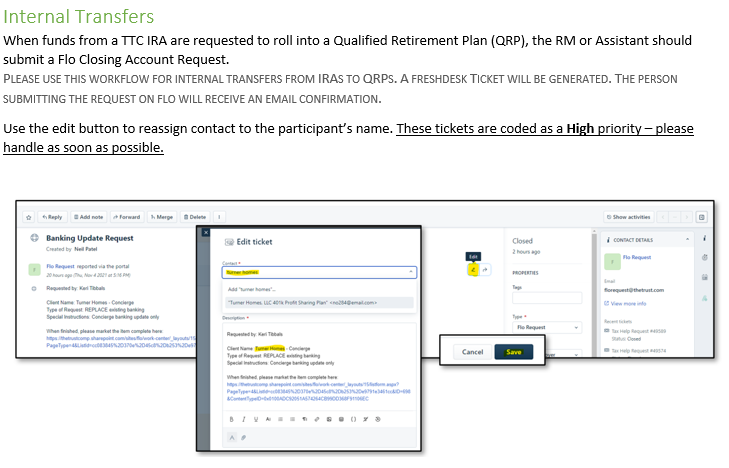
You can add notes by following the below:
Open Edit in grid view. From there, you can add notes directly to each item without opening each one. Ensure you select 'Exit Edit in Grid View" after you changes, otherwise the changes will not stay.